Clawd Build Guide
Everything you need to turn two printed parts and a handful of plug-in electronics into a tappable, beeping Clawd. No soldering: every wire pushes on.
Lay out the parts
Tick each one off as you find it. Your ticks are saved in this browser only.
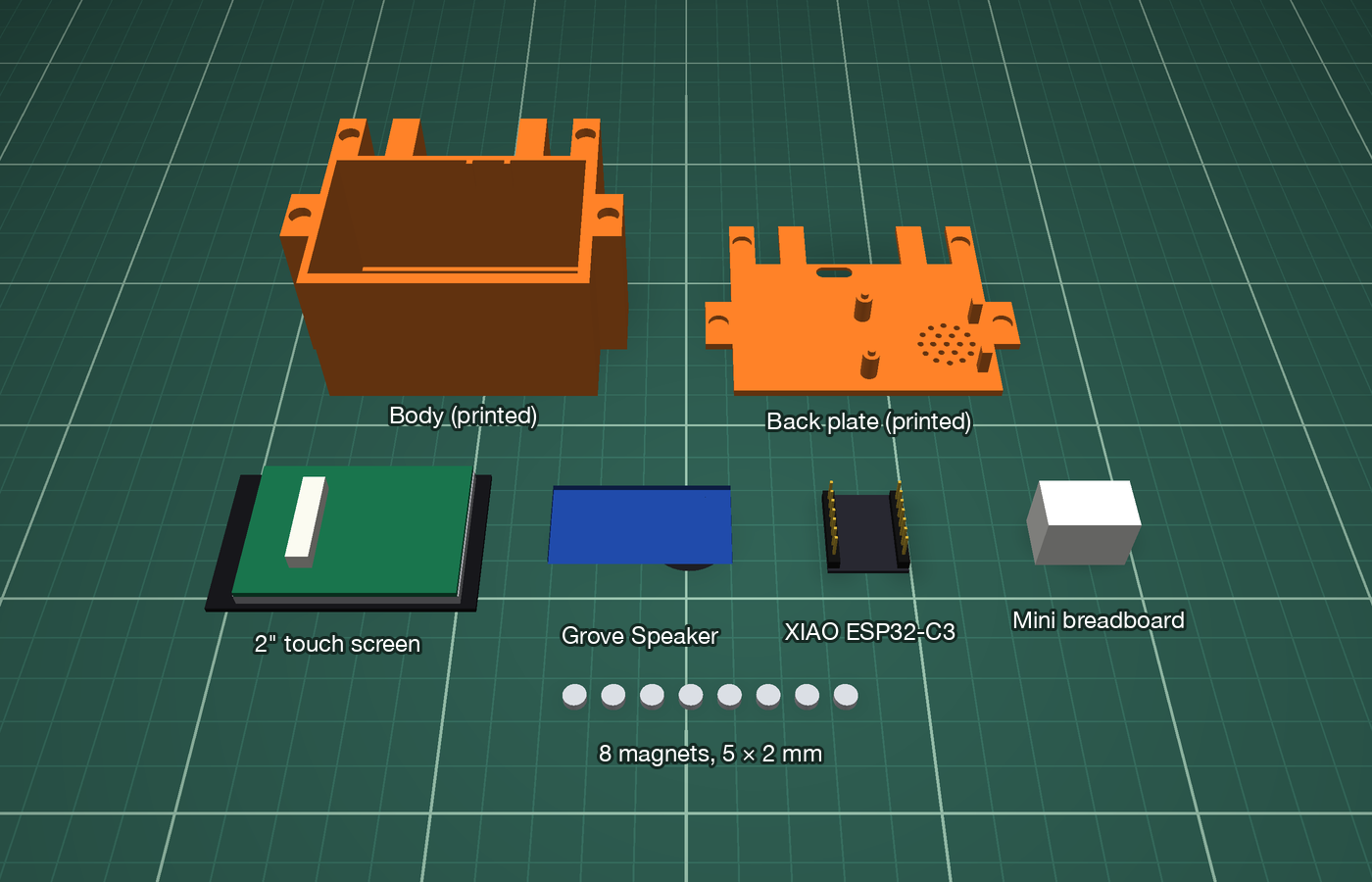
- ×1
- ×1
- ×1
- ×1
- ×1
- ×1
- ×1
- ×2
- ×1
- ×8
- ×1
- —
Glue magnets into the body
Four pockets: one in each arm and one in each outer leg.
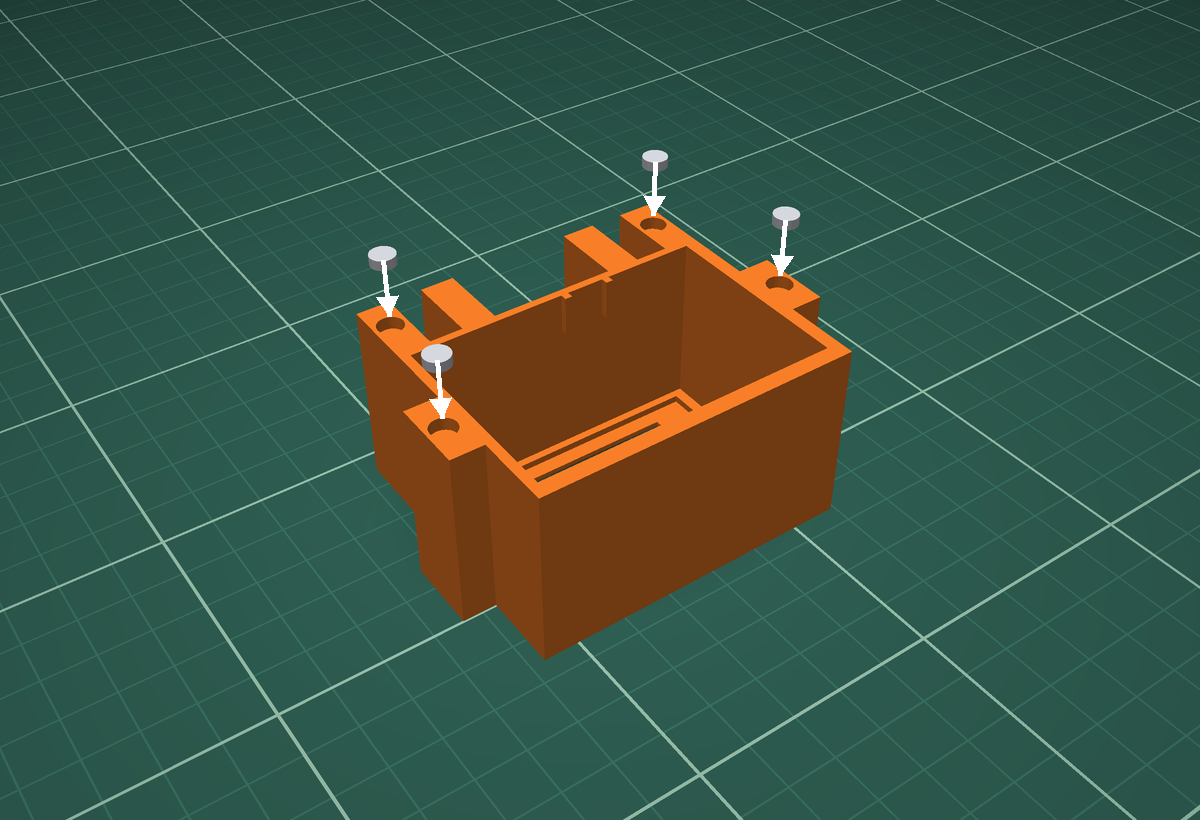
- Lay the body face down so the open back points up.
- Put a small drop of glue in each of the 4 pockets.
- Push a magnet into each pocket. It should sit slightly below the surface (about 0.6 mm).
- Let the glue set fully before Step 2.
Glue magnets into the back plate
This is the one step where order matters: the magnets must attract, not repel.
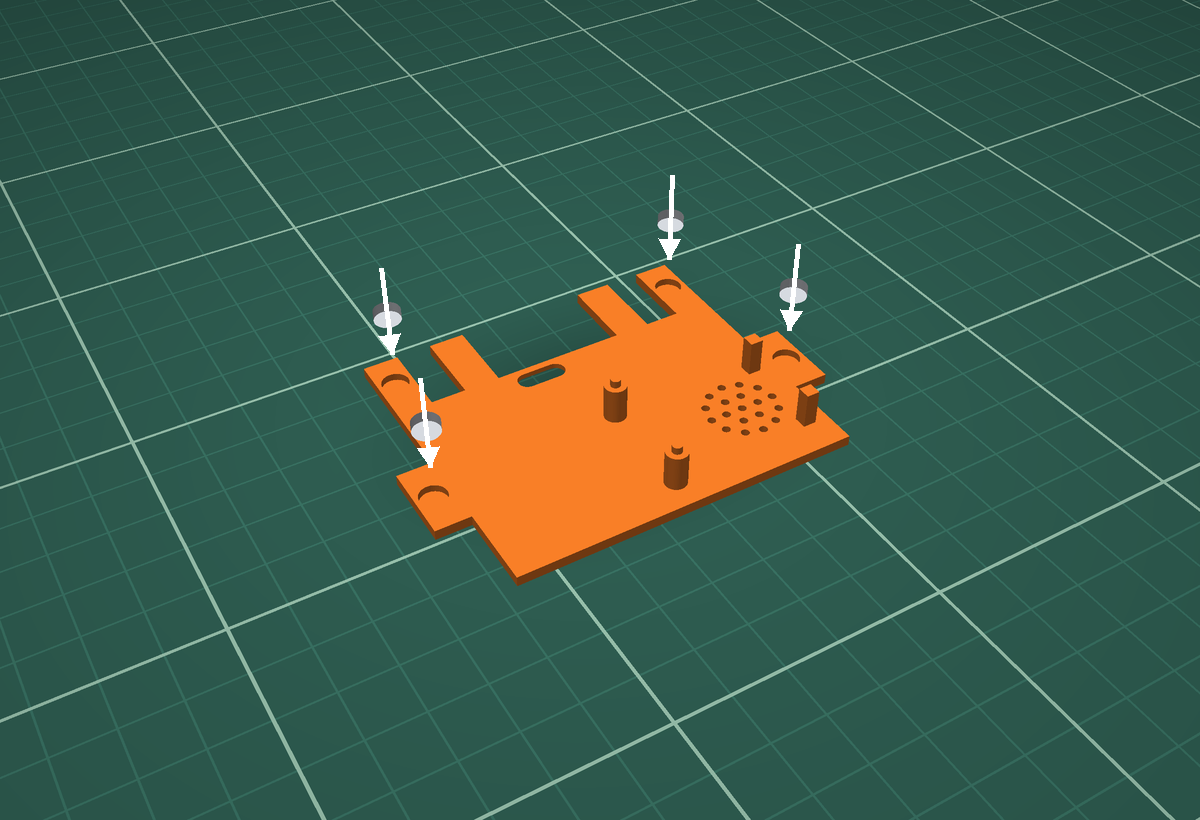
- Place a loose magnet on top of each magnet in the body. Let it snap on by itself, so it faces the right way.
- Mark the exposed top of each loose magnet with a pen dot.
- Put a drop of glue in each pocket on the inner side of the back plate (the side with the posts).
- Lower the plate straight onto the body so the pockets land on the stacked magnets. Press gently.
- Wait for the glue to set, then pull the plate off. The magnets stay in the plate, standing 0.6 mm proud.
Fit the screen
It drops in from the back, glass first.
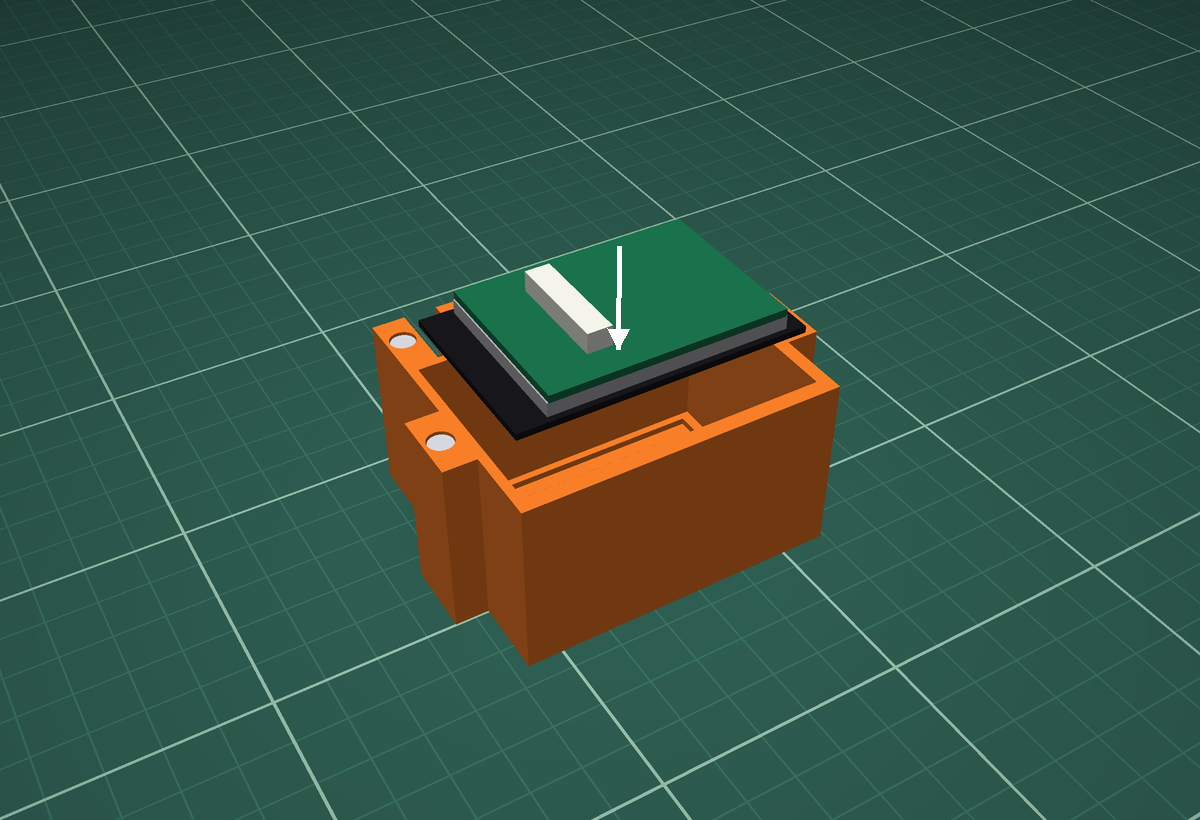
- Plug the 15-wire cable into the socket on the back of the screen now. It is much easier than later.
- Peel the screen's protective film. Stick thin double-sided tape on the black border of the glass, not on the picture area.
- With the body still face down, lower the screen in glass first. The cable socket faces you.
- The glass drops into a shallow pocket behind the face. Check from the front that the window is square, then press firmly.
Mount the speaker on the back plate
The speaker faces the grille. It rides on the plate, so it lifts away whenever you open Clawd.
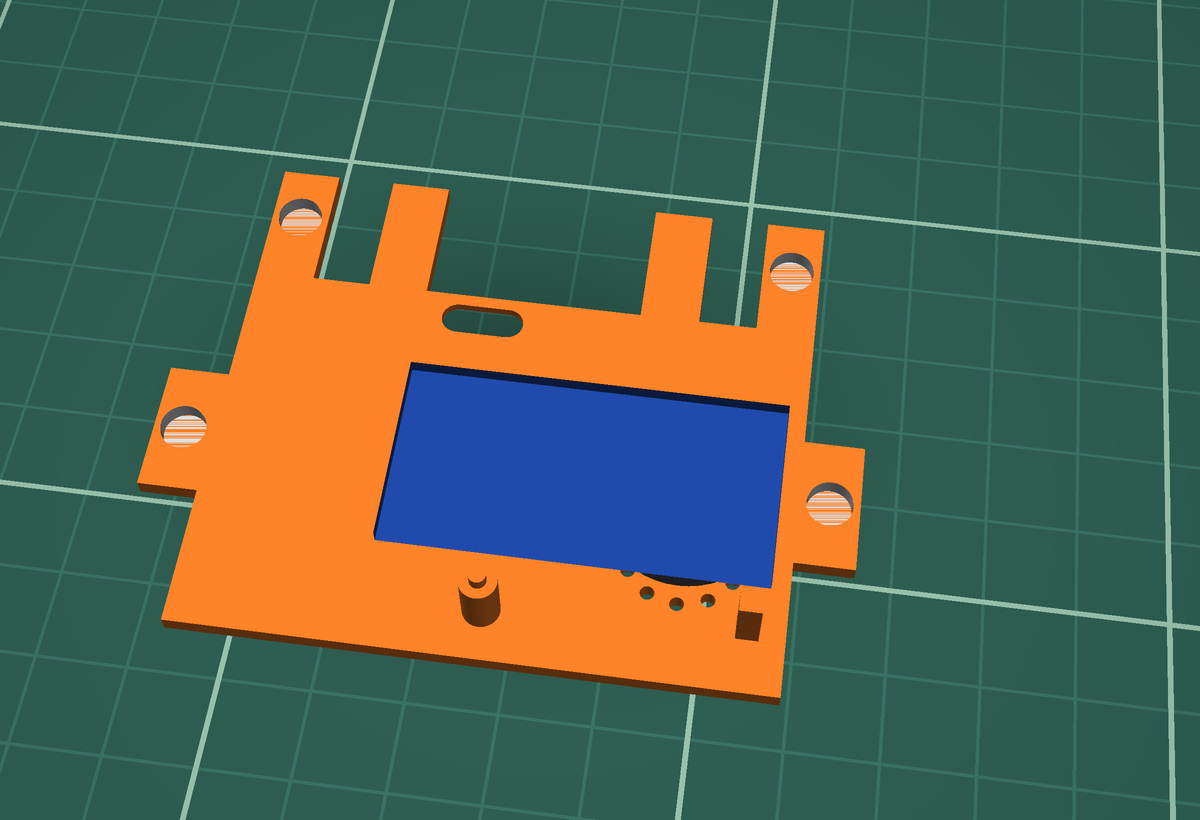
- Plug the Grove-to-female cable into the speaker's white socket.
- Turn the speaker board over so the round speaker faces the plate.
- Fit its two mounting holes over the two pins. The speaker end rests on the two square pads, right over the grille.
- Add a dab of glue on each pin to hold it.
Wire it up
Do this with the XIAO outside the case, where you can see the pin labels. The pin names are printed on the XIAO; the wire names are printed next to the screen's socket.
| From | Wire | To |
|---|---|---|
| Screen | VCC | 3V3 |
| Screen | GND | Breadboard GND row (via a male–male jumper) |
| Screen | MOSI | D10 |
| Screen | SCLK | D8 |
| Screen | LCD_CS | D5 |
| Screen | LCD_DC | D3 |
| Screen | LCD_BL | D6 |
| Screen | TP_SDA | D4 |
| Screen | TP_SCL | D9 |
| Speaker | SIG (yellow) | D7 |
| Speaker | VCC (red) | 5V |
| Speaker | GND (black) | Breadboard GND row (via a male–male jumper) |
| Breadboard | GND row | GND (female–male jumper) |
- Push one male end of each male–male jumper into the screen's GND wire and the speaker's black GND wire. Push the other ends into the same row of the breadboard.
- Push the male end of the female–male jumper into that row too, and its female end onto the XIAO's GND pin.
- Push every other wire straight onto its XIAO pin, following the table.
- Tuck the unused wires (MISO, LCD_RST, TP_RST, TP_INT, SD_CS, white NC) out of the way. Leave them loose; they do nothing.
Put the XIAO, antenna and breadboard in
The XIAO slides down the inside of Clawd's bottom wall, USB port last.
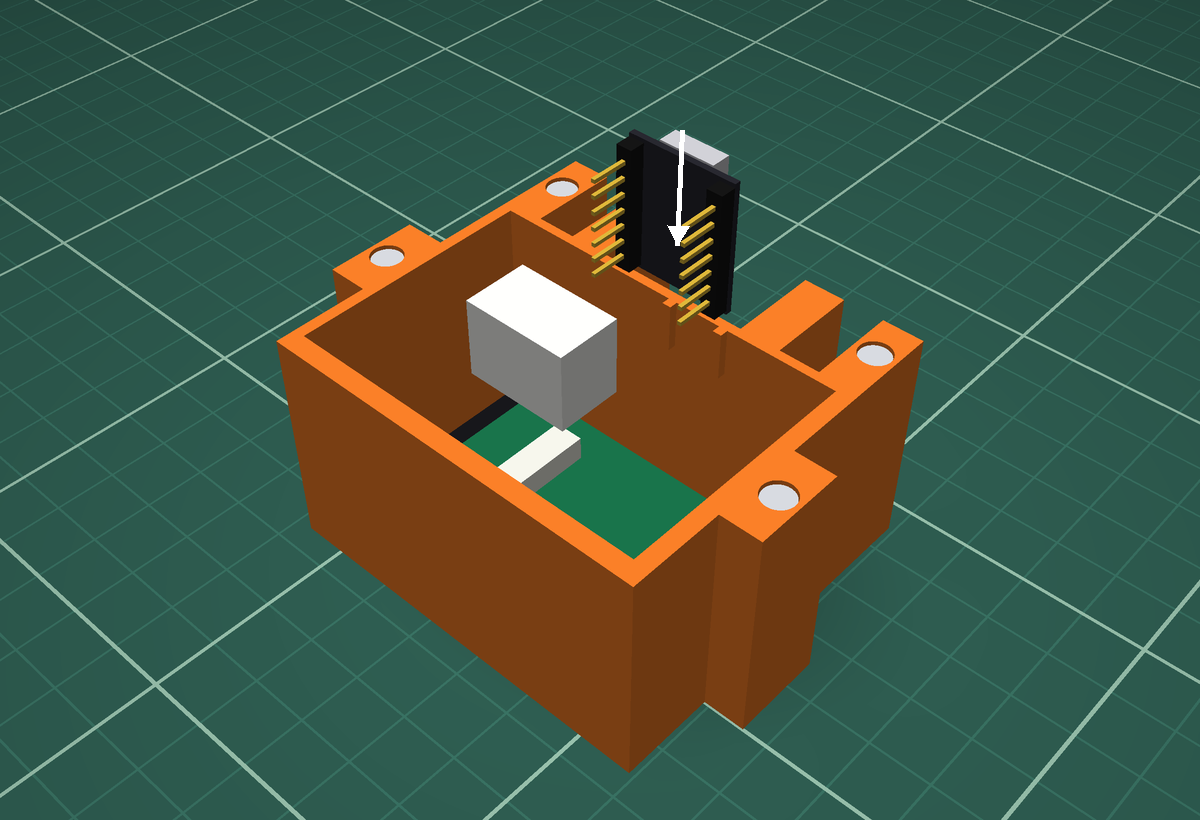
- Clip the flat antenna's tiny round plug onto the XIAO's antenna socket. Press until it clicks.
- Stick the antenna flat on the inside of the right-hand wall, near the top, with a strip of tape.
- Stick the breadboard to the inside of the bottom wall on the left, with double-sided tape.
- Hold the XIAO with its parts facing the wall and pins facing into the case. Slide it down so the USB port sits between the two little curbs, flush with the open back.
- A small square of double-sided tape under the XIAO stops it rattling.
Upload the code and test
Test with the back still off, so any fix is easy.
- Install Arduino IDE 2. In Settings → Additional boards manager URLs, add:
https://espressif.github.io/arduino-esp32/package_esp32_index.json - In Boards Manager, install esp32 by Espressif. In Library Manager, install Adafruit ST7735 and ST7789 (it brings Adafruit GFX with it).
- Open
clawd_2in_touch_firmware.ino. Choose board XIAO_ESP32C3, and set USB CDC On Boot to Enabled. Leave the other settings as they are. - Plug the USB-C cable into the XIAO and click Upload.
- Clawd plays a hello chirp, shows its logo, then the Wi-Fi details. Tap the screen: Clawd should squish its eyes and chirp.
Tidy the wires and click the back on
The magnets pull it into place.
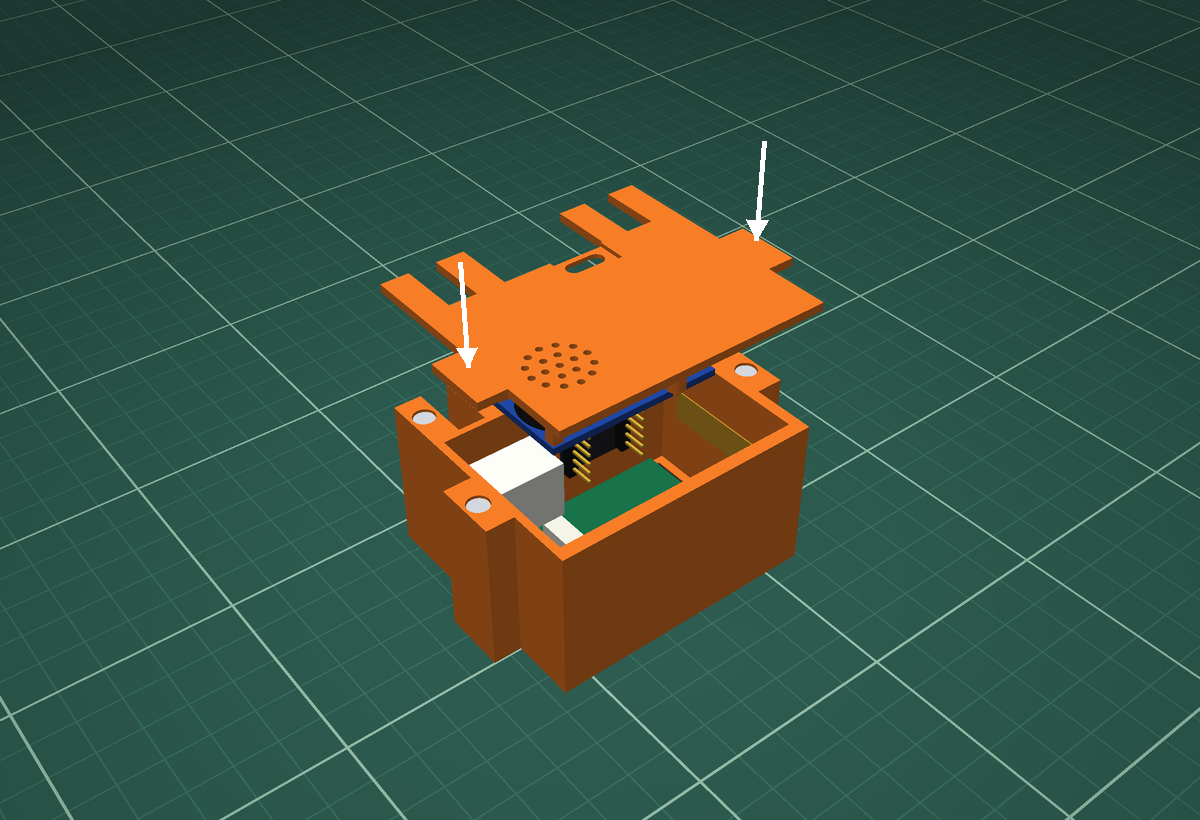
- Fold the spare cable into a neat bundle in the middle of the case. A small cable tie or a twist of tape keeps it together.
- Check that nothing presses on the back of the screen and nothing sits on the XIAO's USB port.
- Swing the back plate over (the speaker cable stays connected) and let the magnets snap it home.
- Plug the right-angle USB-C cable in through the slot near the bottom of the back plate.
Say hello to Clawd
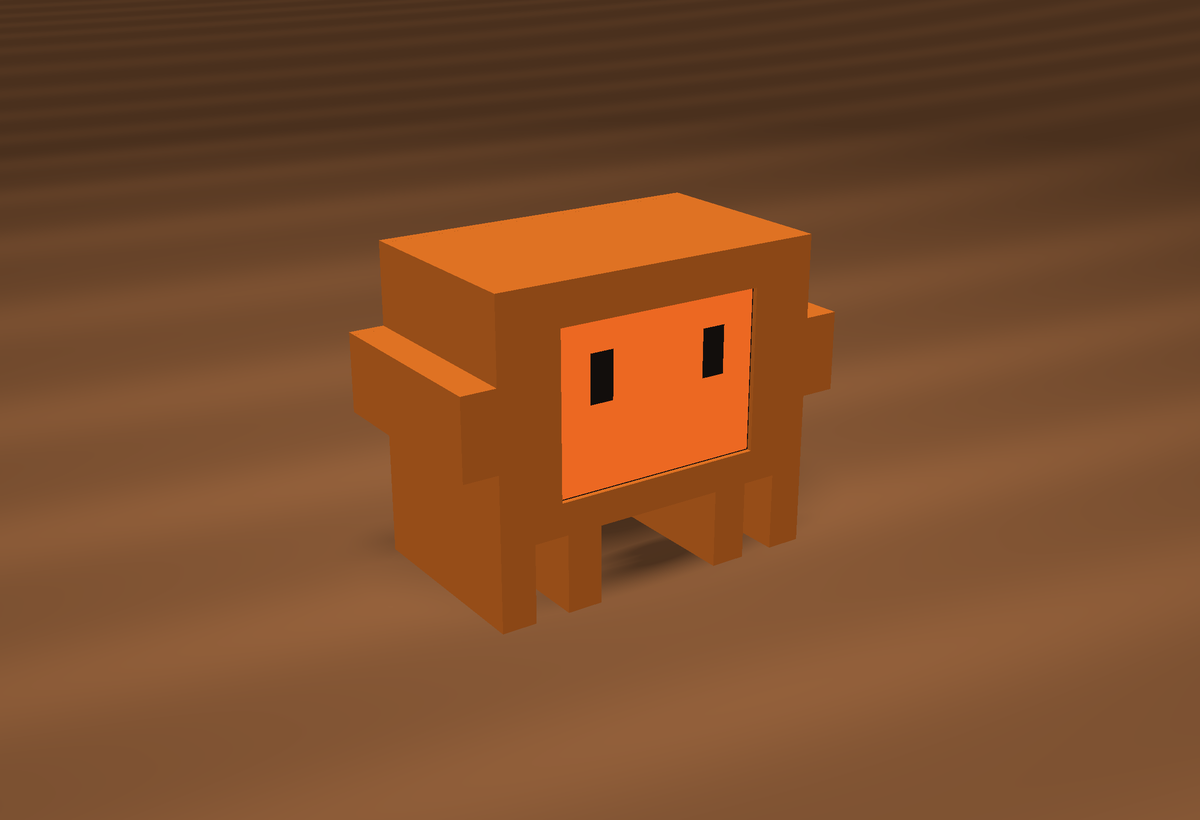
- On your phone, join the Wi-Fi network
Clawd. The password isclawd1234. - Open
http://192.168.4.1in your browser to switch eyes, open the terminal, draw on the screen, or turn sound on and off. - Tap Clawd's face any time to pet it. Swipe left or right for the Claude status, clock and info views.
- Next: connect Clawd to your computer for Claude Code alerts.
Connect Clawd to your computer
Clawd's status light and "Claude needs you" alerts come from small helpers on the computer that runs Claude Code or opencode. Clawd connects two ways: plugged into the computer by USB, or over Wi-Fi. The helpers try both and Clawd ignores duplicates. Nothing runs in the background: Claude Code or opencode fires the helper only when something happens. The helpers are on GitHub at github.com/cliddy1005/clawd-helpers.
clawd.local.A · Install the helpers
On the computer that runs Claude Code (Mac or Linux), open Terminal and run:
curl -fsSL https://raw.githubusercontent.com/cliddy1005/clawd-helpers/main/install.sh | sh
- The installer copies the Clawd hook into
~/.claude/and adds five hooks to~/.claude/settings.json. It keeps your other settings, saves a backup first, and never adds a hook twice. - If opencode is on the computer, it installs the Clawd plugin for opencode too.
- To choose what's installed, add an option after
sh -s --, for example opencode only:
curl -fsSL https://raw.githubusercontent.com/cliddy1005/clawd-helpers/main/install.sh | sh -s -- --opencode
| Option | Installs |
|---|---|
--claude-code | Claude Code hook only |
--opencode | opencode plugin for all projects |
--opencode-project | opencode plugin for the folder you're in only |
--all | Both |
- Restart Claude Code (and opencode) and ask it something. opencode keeps a server running in the background, so also run
pkill -f "opencode serve"once, or restart your computer. The dot in Clawd's top-right corner pulses amber while it works and turns green with a chime when it's done. When it asks for permission, Clawd flashes Claude needs you.
| Claude Code / opencode | Clawd shows |
|---|---|
| Session starts | Blue light (idle) |
| Working: you sent a prompt, or a tool ran | Pulsing amber. Clears an alert once you've answered. |
| Asks permission or waits for you | "Claude needs you" alert and chime |
| Finished | Green light, done chime and a happy squish |
git clone https://github.com/cliddy1005/clawd-helpers.git → cd clawd-helpers → ./install.shB · Plugged in: you're done
Plug Clawd into the computer with the USB-C cable. That's it: the helpers find Clawd's USB port by themselves each time Claude Code or opencode has something to show.
- Use a USB-C cable that carries data. Some cables only charge.
- If you have other USB dev boards plugged in, tell the helpers which port is Clawd by adding
export CLAWD_PORT=/dev/cu.usbmodem101(your port) to~/.zshrc. Clawd's Info view shows "USB: connected to a computer" when the cable is working.
C · Or use Wi-Fi
Use this if Clawd sits on a charger away from the computer. Do it once:
- Power Clawd from any USB port or charger.
- On your phone or computer, join the network
Clawd(passwordclawd1234). - Open
http://192.168.4.1/setup, type your home Wi-Fi name and password, and tap Save and restart. Use a 2.4 GHz network; most routers have one. - Clawd shows "Joining Wi-Fi…", then its eyes. Swipe to the Info view: it shows your network and an IP address such as
192.168.1.42. - Put your computer back on your home Wi-Fi and open
http://clawd.local. The controller page should load. If not, use the IP address from the Info view.
D · Test it
Run the line for your route in a terminal. Clawd should flash the alert and chime; tap to dismiss. Swap waiting for working, done or idle to see the other states.
curl "http://clawd.local/cc?state=waiting&msg=Hello&project=test"       # Wi-Fi
echo "waiting|test|Hello" >> /dev/cu.usbmodem101                                 # USB (use your port: ls /dev/cu.usbmodem*)
On Windows
Claude Code runs hooks through Git Bash, so the hook script runs as-is: copy claude-code/clawd-notify.sh from the repo to %USERPROFILE%\.claude\ and add the hooks from claude-code/settings-snippet.json to %USERPROFILE%\.claude\settings.json. On Windows, use Wi-Fi: the USB route is Mac and Linux only for now. .local names often don't resolve on Windows, so set the CLAWD_HOST environment variable to Clawd's IP address.
Quick fixes
| What you see | Try this |
|---|---|
| Screen stays black | Check VCC→3V3, GND, and LCD_BL→D6. Reseat the 15-wire cable at the screen. |
| Picture is upside down | In the code, change tft.setRotation(1) to tft.setRotation(3) and upload again. |
| Tapping does nothing | Check TP_SDA→D4 and TP_SCL→D9. Arduino's Serial Monitor (115200) prints touch: ok when it's found. |
| No sound | Check SIG→D7, red→5V, black→GND row. Turn the blue volume knob up. Check sound is on in the web page. |
| Can't see the Wi-Fi network | Make sure the antenna is clicked onto the XIAO. Unplug and replug the USB cable. |
| Upload fails | Use a USB-C cable that carries data, not a charge-only one. Hold the XIAO's BOOT button while plugging in, then upload. |
clawd.local won't load | Use the IP address from Clawd's Info view. For the helpers, add export CLAWD_HOST=192.168.x.y to your shell profile. |
| Clawd keeps showing its own hotspot | It couldn't join your Wi-Fi. Re-enter the details at 192.168.4.1/setup and check the network is 2.4 GHz. |
| Alerts don't arrive over USB | Use a data USB-C cable, not a charge-only one. With other USB boards plugged in, set CLAWD_PORT to Clawd's port (ls /dev/cu.usbmodem* lists them). |
| No alerts from Claude Code | Check ~/.claude/settings.json is valid JSON (a missing comma breaks it), then run the test commands in Part D. Running the installer again is safe. |
| Back plate pushes away | A plate magnet is upside down. Pry it out, flip it, and glue it again (see Step 2). |